
- Upon logging in to your account, you should arrive at either the Email tab or the Toast.net Start page.
- If your account is set up to arrive at the Toast.net Start page, click on the icon in the upper-right named “Smarter Mail”
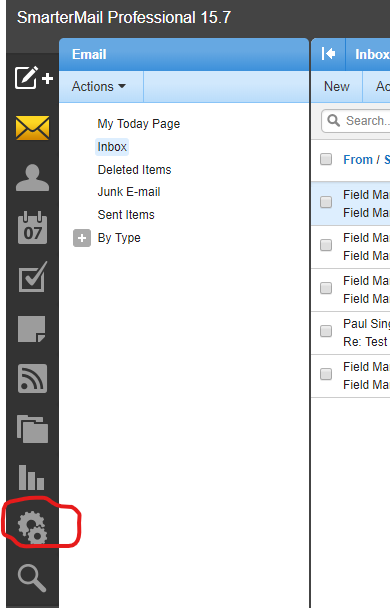
- Once you are logged into and viewing your email account, you should see a row of icons on the left side of the page.
- Click on the “Gear” icon (near the bottom) to access your account settings.
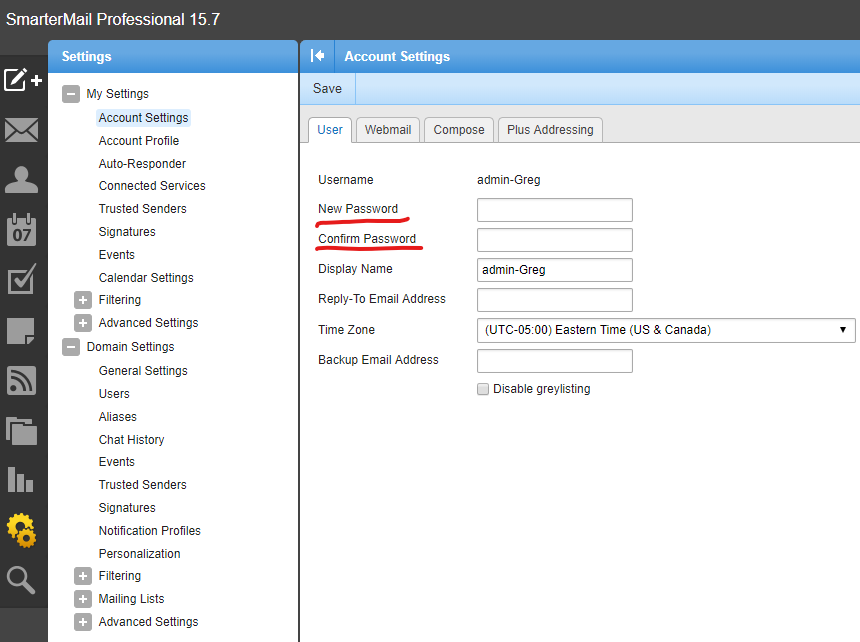
4. Once you are in the Settings tab, enter your new password in the spaces next to "New Password" and “Confirm Password".
- P.S. You can also take this time to enter a "Backup Email Address" so you can recover your password using the "Forgot your password" option
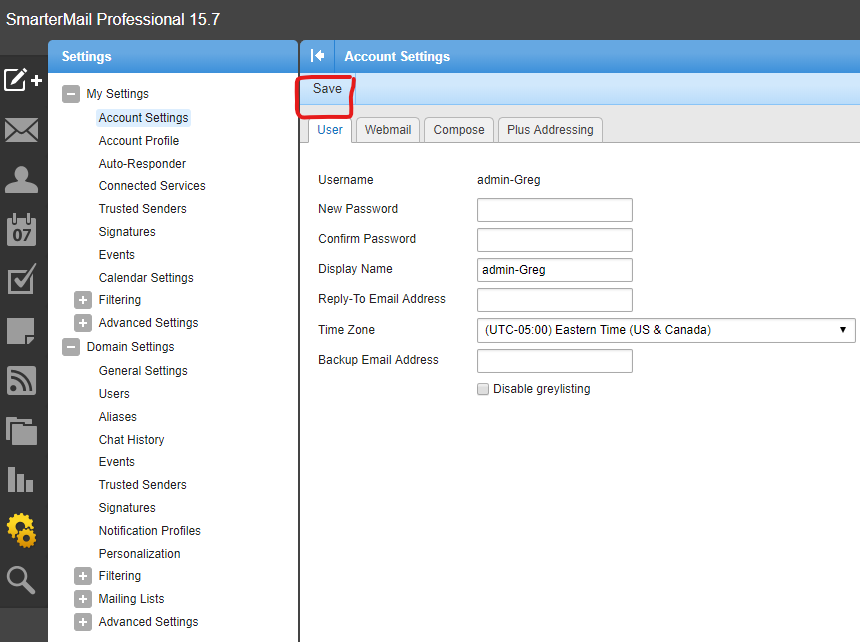
5. When you are finished, click on the Save button near the top-left of the main window to finish changing your password.
Comments
0 comments
Article is closed for comments.