
If your drawers wont open and jobs will not print you have a printer issue.
First verify printers are connected via ethernet cable and powered on.
Second verify drawer cable is connected to the printer it is associated with.
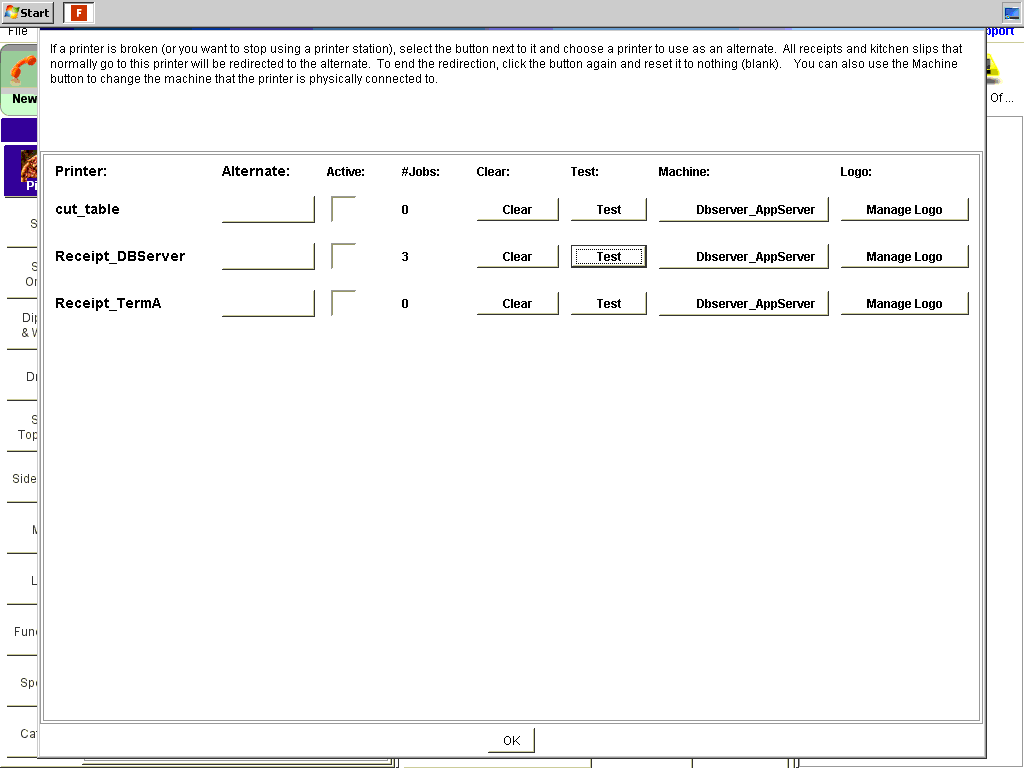
This is most likely an issue with your AppServer. You can verify which app server your printers and drawers are connected to through Tools → Printers → Redirect Printers.
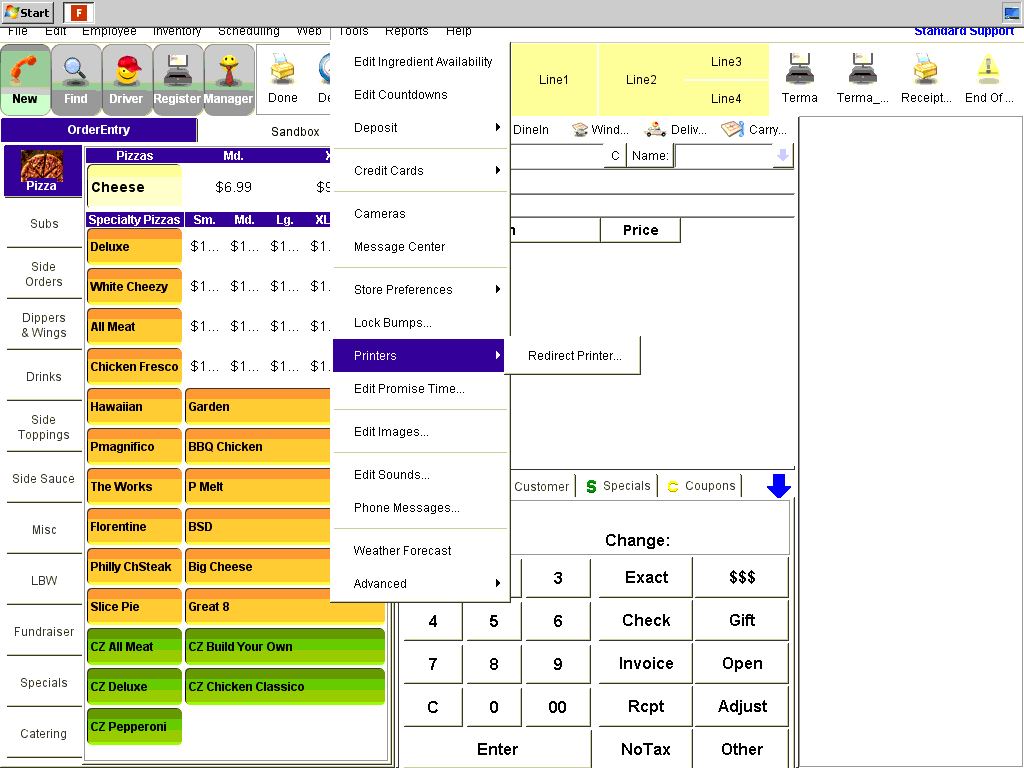
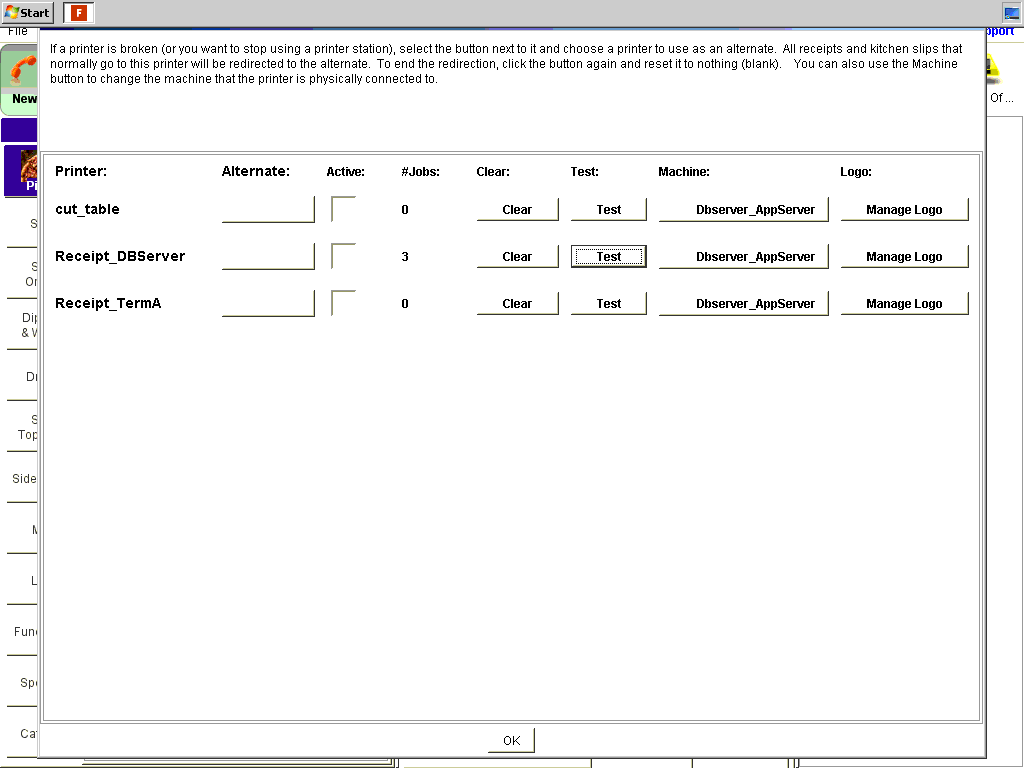
From this screen, clear any pending jobs using the “clear” button.
Under the “Machine” column you’ll see which AppServer your printers are connected to. In this example they are all connected to the DBServer_AppServer. Your store may be different.
To Reset the appropriate AppServer navigate to the appropriate terminal. In this case you would navigate to the DBServer. Exit out of the FoodTec application and click on the “Tools” icon on your blue desktop.
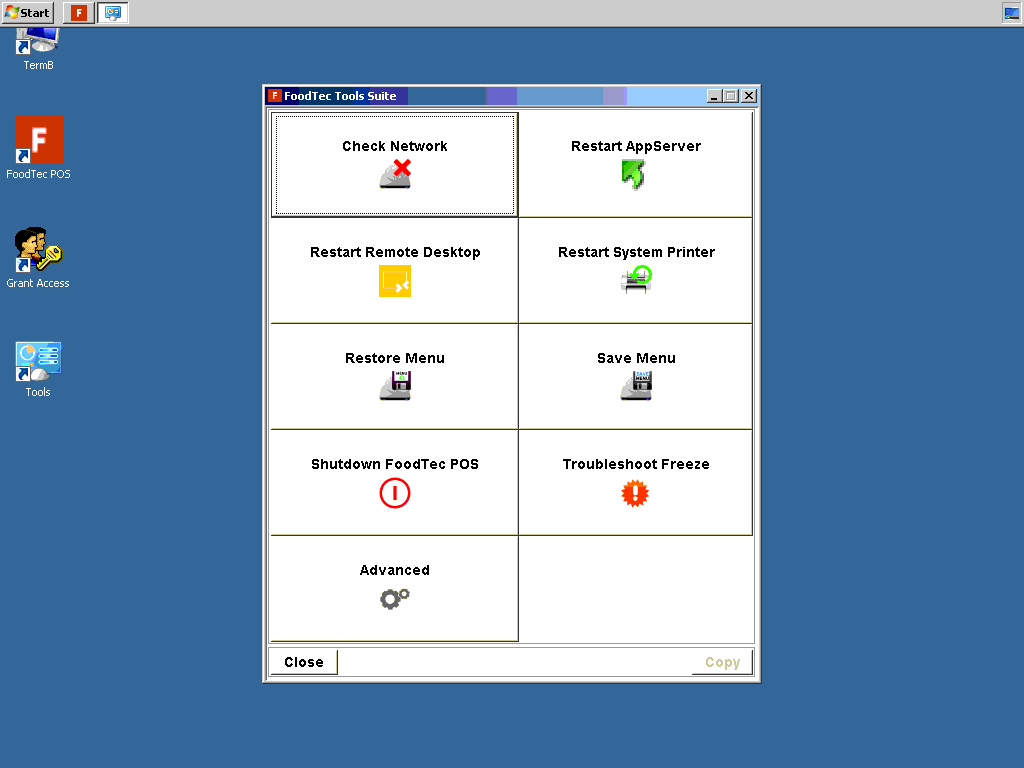
Click on the “Restart AppServer” icon in the FoodTec Tools Suite window.
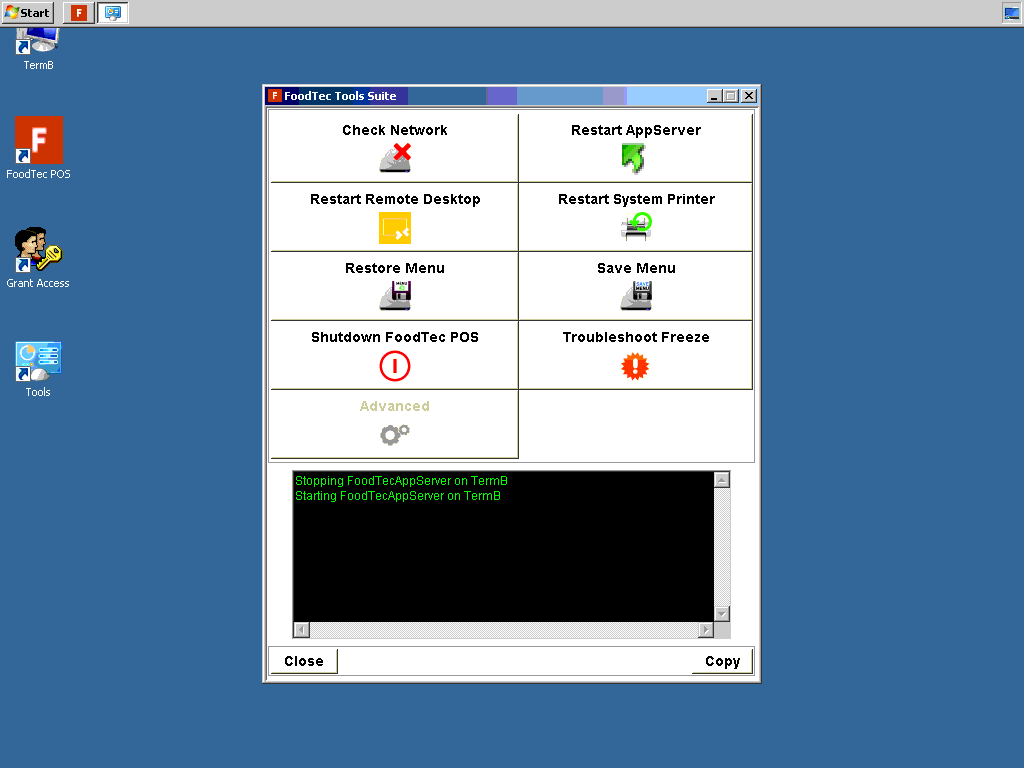
A black text box with green text will display that the FoodTecAppServer has stopped and then started again. Once you see the AppServer has started again re-open the FoodTec application using the FoodTec POS logo on your blue desktop.
Once the FoodTec application has loaded go back into Tools → Printers → Redirect Printers and perform a test print using the “Test” button next to the printer you are having issues with. It may take a few second for the AppServer to catch up and print the test page.
Once you have a test page you should be able to open your drawer. Using the “Open” button on your register page. You will need at least an “Any Manager” security level to open the cash drawer without a cash transaction.
Comments
0 comments
Article is closed for comments.